After Effects shortcuts are the easiest way to work faster without any plugins. Every click through a menu takes a few seconds, and there are hundreds of them a day. The keyboard turns those minutes into hours of free time.
Below are thirty combos I actually use every day. They’re listed for Windows; on Mac use Cmd instead of Ctrl and Option instead of Alt.
1. Layer properties
- A, P, S, R, T: Anchor Point, Position, Scale, Rotation, Opacity.
- Shift + letter: adds another property to the one already open.
- Alt+Shift + letter: sets a keyframe on a property without opening it.
- U: shows all properties with keyframes.
- UU: shows every modified property — handy for making sense of someone else’s project.
If you memorize only one group, make it this one. Instead of unfolding layer triangles every time, you open exactly what you need in a second.
2. Keyframes
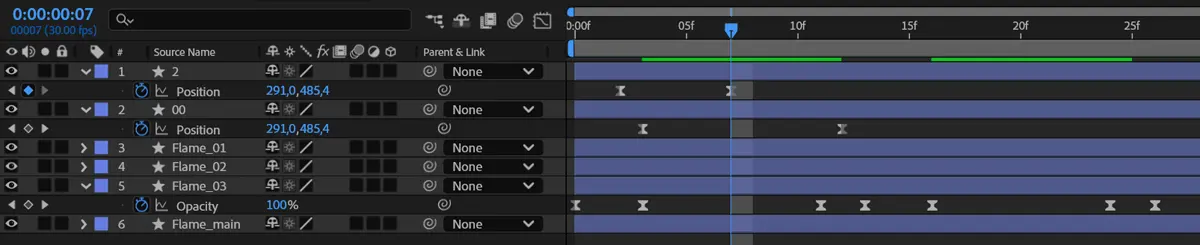
- F9: Easy Ease — a smooth in and out.
- J and K: jump to the previous and next keyframe.
- Shift+F3: open the Graph Editor.
- Ctrl+Alt+H: make keys roving for even motion.
3. Navigation and previews
- Space: play the preview; holding it gives the hand tool.
- Home and End: start and end of the comp.
- I and O: in and out point of the selected layer.
- Page Up / Page Down: one frame back and forward.
- B and N: work area start and end.
- + and –: zoom the timeline.
- Shift+/: fit the comp to the viewer.
- ~: maximize the panel under the cursor.
4. Working with layers
- Ctrl+D: duplicate a layer.
- Ctrl+Shift+D: split the layer at the playhead.
- [ and ]: move the layer’s in or out point to the playhead.
- Alt+[ and Alt+]: trim the layer to the playhead.
- Ctrl+Shift+C: precompose the selected layers.
- Ctrl+Alt+F: fit the layer to the frame.
- Ctrl+Alt+Home: center the anchor point of a shape layer.
- Alt + drag footage onto a layer: replace the layer and keep its animation.
5. A few more useful ones
- Ctrl+Shift+H: hide layer handles and controls in the viewer.
- Ctrl+R: rulers, Ctrl+’: grid.
- Ctrl+J, Ctrl+Shift+J: preview resolution — full and half.
- * on the numpad: add a timeline marker.
Tip:
Don’t learn them all at once. Take three or four keys a week and force yourself not to use the menu. In a month your hands will remember them, and your speed will noticeably grow.
Your own shortcuts
After Effects has a keyboard editor: Edit → Keyboard Shortcuts. It shows which keys are taken and lets you assign your own combos to the commands you use most, like precomposing or adding a null.
Just don’t remap standard keys without a reason, or you’ll keep stumbling on someone else’s computer or project.
And actions without shortcuts, like loop, bounce or wiggle, take one click in my RenderMe Tools panel. If you’re just starting out, check the guide on how to become a motion designer from scratch.
Ready to bring your idea to life?
Tell me a bit about your task — I’ll come back with a format, rough timeline and a quote within one business day.
Get a quote