FirstFrame
FirstFrame — Custom Splash Screen for After Effects
Other
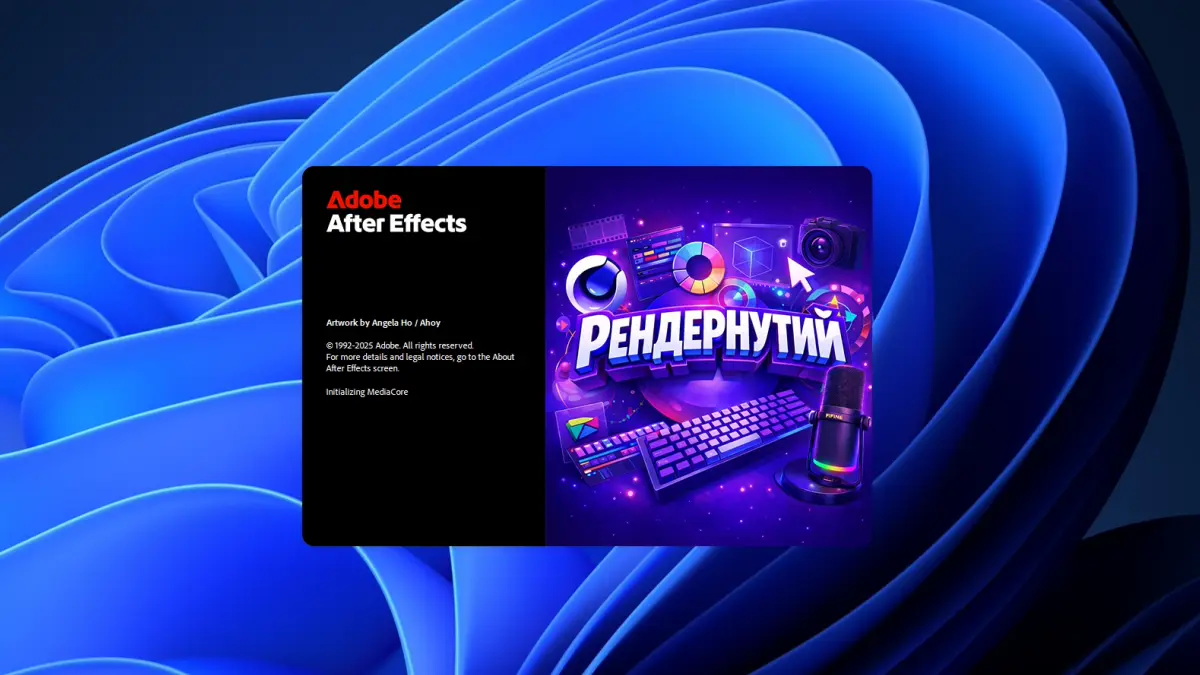
About FirstFrame
Open After Effects or Photoshop every day and see the same stock splash screen? It looks great — but it’s not yours. Wouldn’t it be nicer if the first thing on screen when you sit down to work were your own frame: your studio logo, a favourite piece, a motivating line or a joke for your teammates?
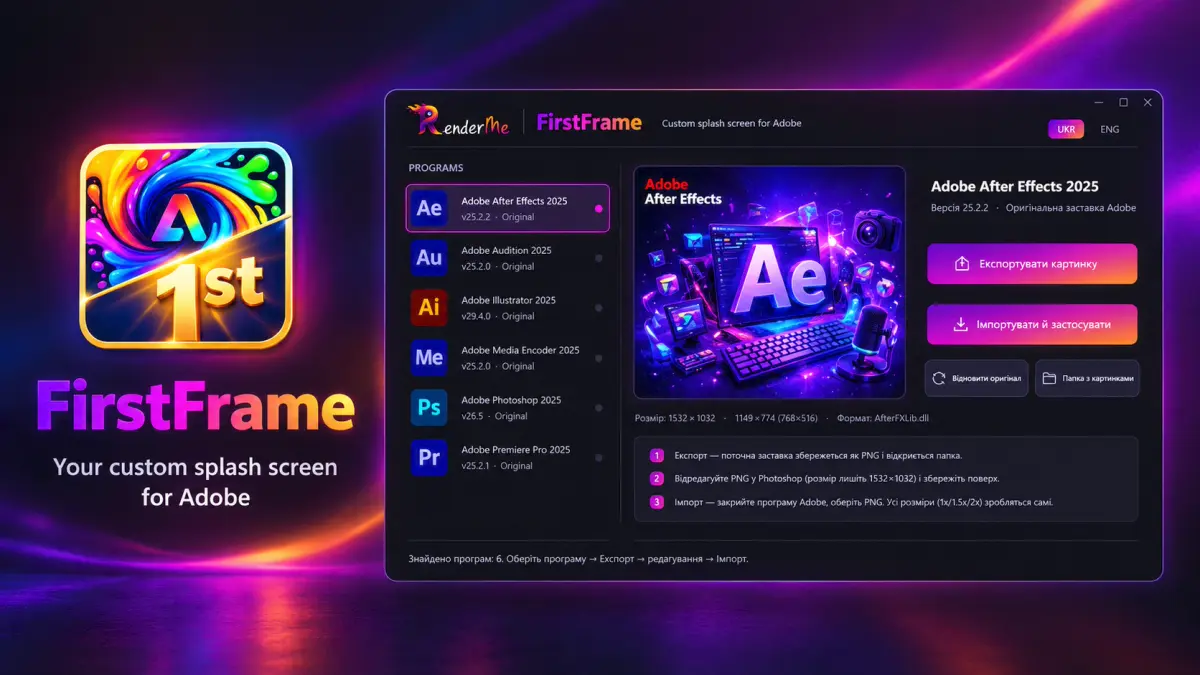
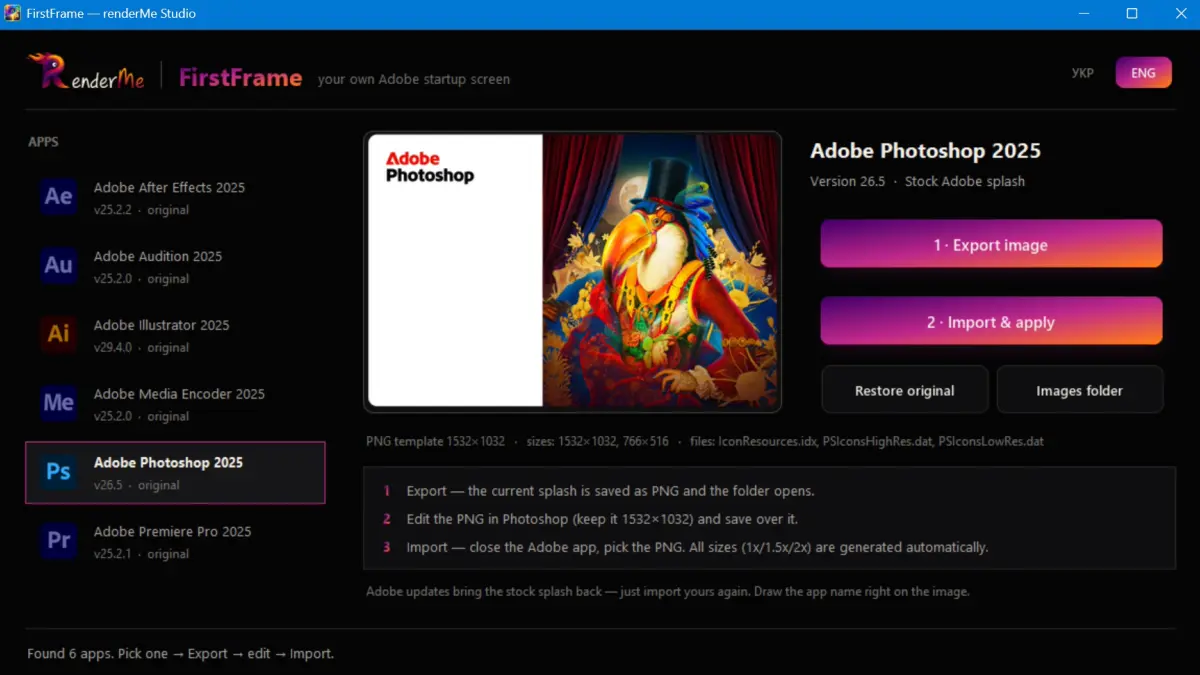
FirstFrame does it in a minute. No digging for hidden files and no risk of breaking anything: it finds your Adobe apps by itself, hands you the splash to edit and puts yours in its place. A small thing that makes your workspace truly yours — and lifts your mood before a long render.
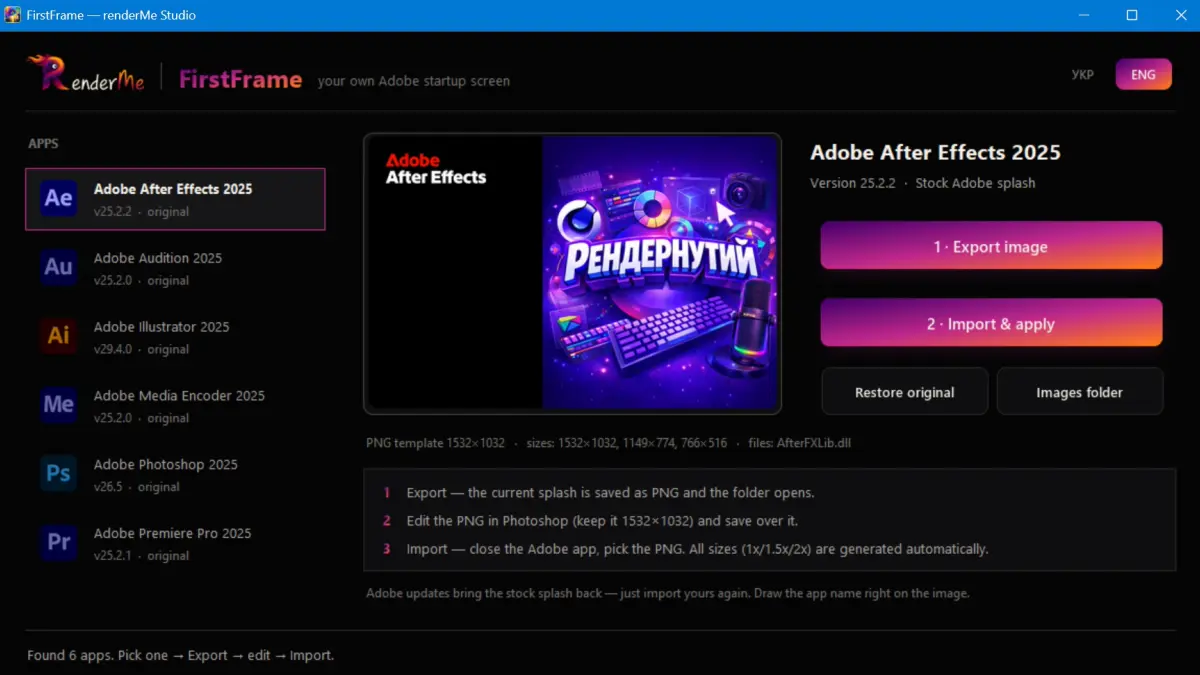
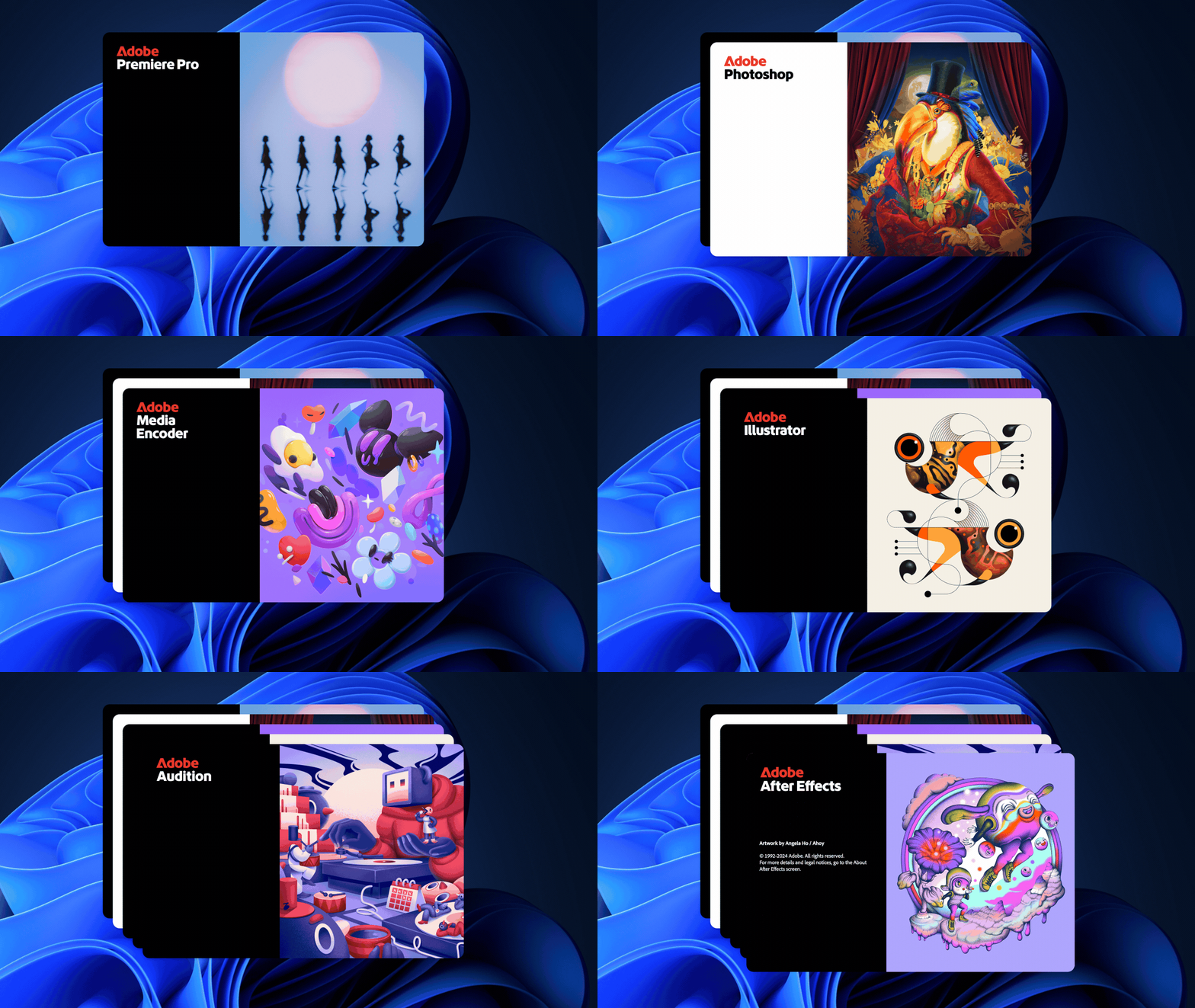
Apps: After Effects, Photoshop, Premiere Pro, Illustrator, Audition and Media EncoderAutomatic: finds your installed apps and shows their versions and current splashOne template: draw one image — every size, Retina included, is made for youSafe: the original is kept, restoring it is one clickComfortable: Windows and macOS, interface in Ukrainian and English
Demo or full version?
The demo is free and lets you try FirstFrame in real work: you can replace the splash screen three times in any supported Adobe app and restore the original at any time — with no limits. That’s enough to make sure everything works exactly the way you want.
The full version removes the limits: change your splash screens as often as you like, experiment, refresh them for a new mood, project or season. You also get all future FirstFrame updates — new Adobe apps and improvements included.
Support the author
I build scripts and tools for motion designers to make working in After Effects and Photoshop easier and more enjoyable. If you like FirstFrame, you can support me with a tip — even when downloading the free demo, you can add one on the checkout page. Every bit of support helps me create new cool tools.
How to use
- 1. Download and unzip the archive. On Windows run FirstFrame_win.bat and allow changes when Windows asks. On Mac open FirstFrame_mac: the first time — right-click → «Open»
- 2. If there’s no Python on your computer, FirstFrame will offer to install it — it’s already in the archive. This happens only once and takes about a minute.
- 3. Pick an app from the list and click «Export image».
- 4. Open the image in Photoshop, add your logo, artwork or text and save it without changing the size.
- 5. Close the Adobe app, click «Import & apply» — and launch it. Done!
You might also like
Life
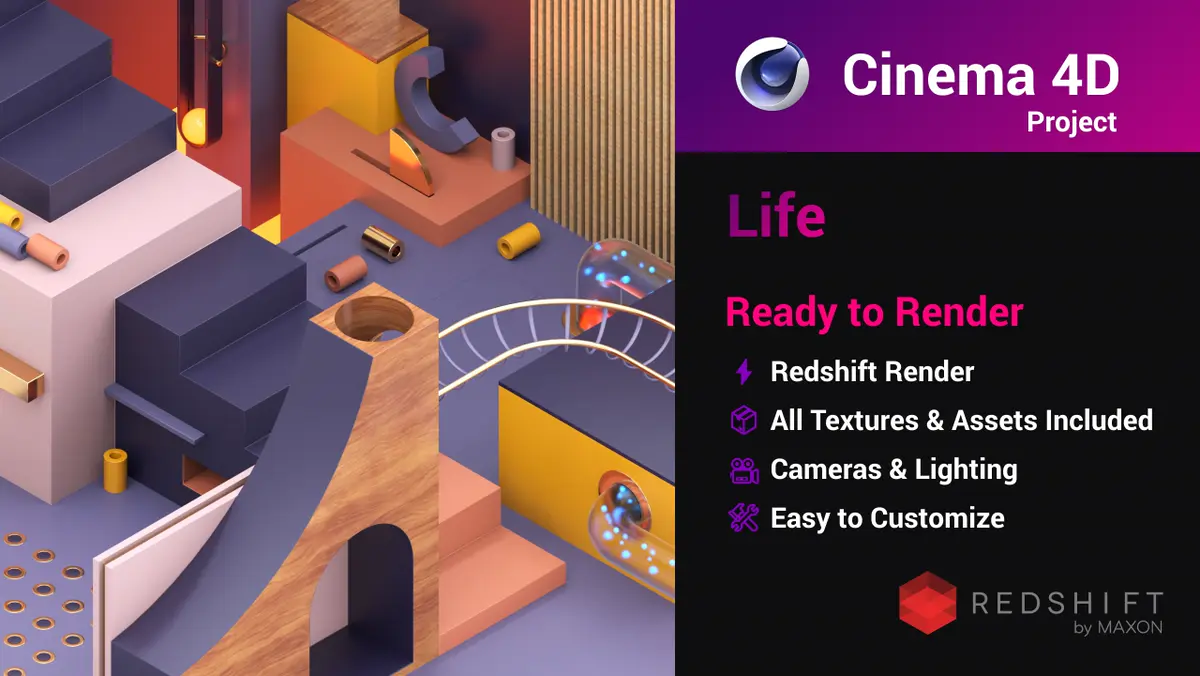
Life is a Cinema 4D project with an abstract isometric machine-diorama where balls roll along golden rails, through a pipe and arches while small details come alive. This seamless loop animation shows a complex composition of dozens of elements and a mix of wood, metal, glass and emissive materials in Redshift.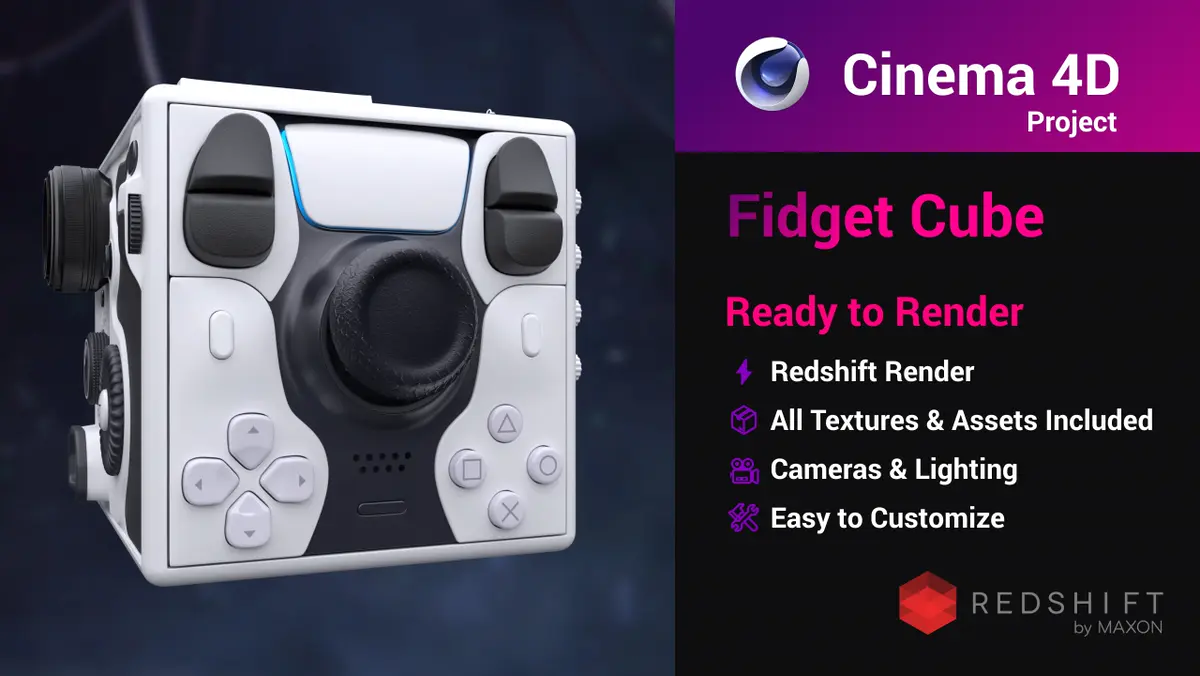
Fidget cube
Fidget cube is a Cinema 4D project with a highly detailed fidget cube where every face is its own gadget: a gamepad, a keyboard, car and camera controls. This seamless 400-frame loop shows complex hard-surface modelling, dozens of Redshift materials and procedural rotation with Signal Plus.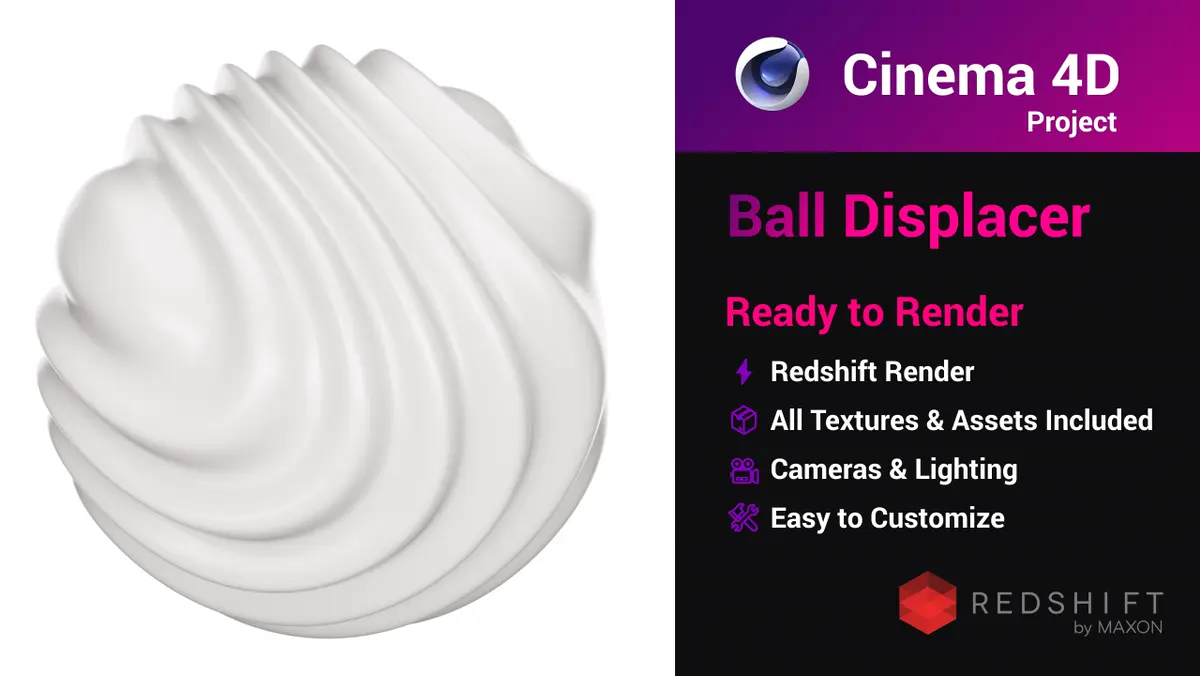
Ball Displacer
Ball Displacer is a free Cinema 4D project with an abstract sphere whose surface keeps flowing in soft waves. This seamless 20-second loop shows the Displacer deformer driven by an animated Noise shader.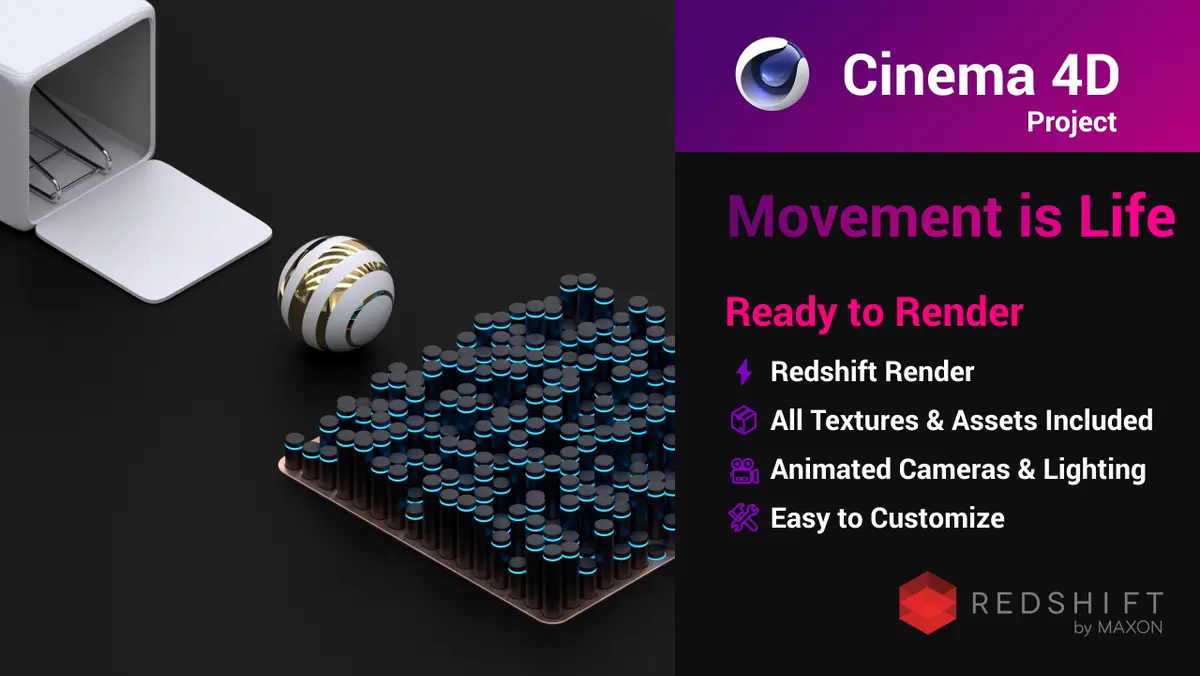
Movement is Life
Movement is Life is a Cinema 4D project with an abstract isometric scene where a metal sphere rolls along a spline while a field of glowing cylinders rises and falls in waves. This seamless loop animation shows MoGraph Cloner, a Noise-driven Shader Field and Align to Spline.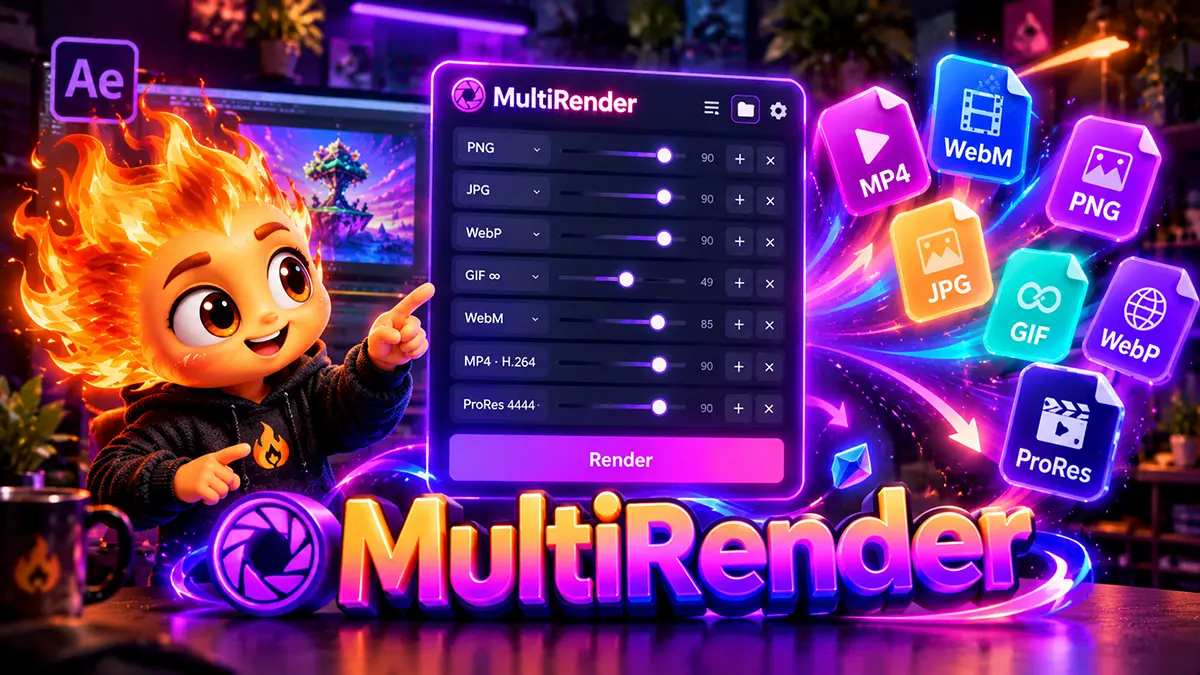
MultiRender
MultiRender is an After Effects panel that exports your composition to several formats at once, in a single click: a lightweight MP4, a transparent WebM, looping GIF and WebP, a ProRes master, and PNG, JPG and WebP stills. Instead of rendering and converting each format separately, you just pick the ones you need, and every file appears right next to your project.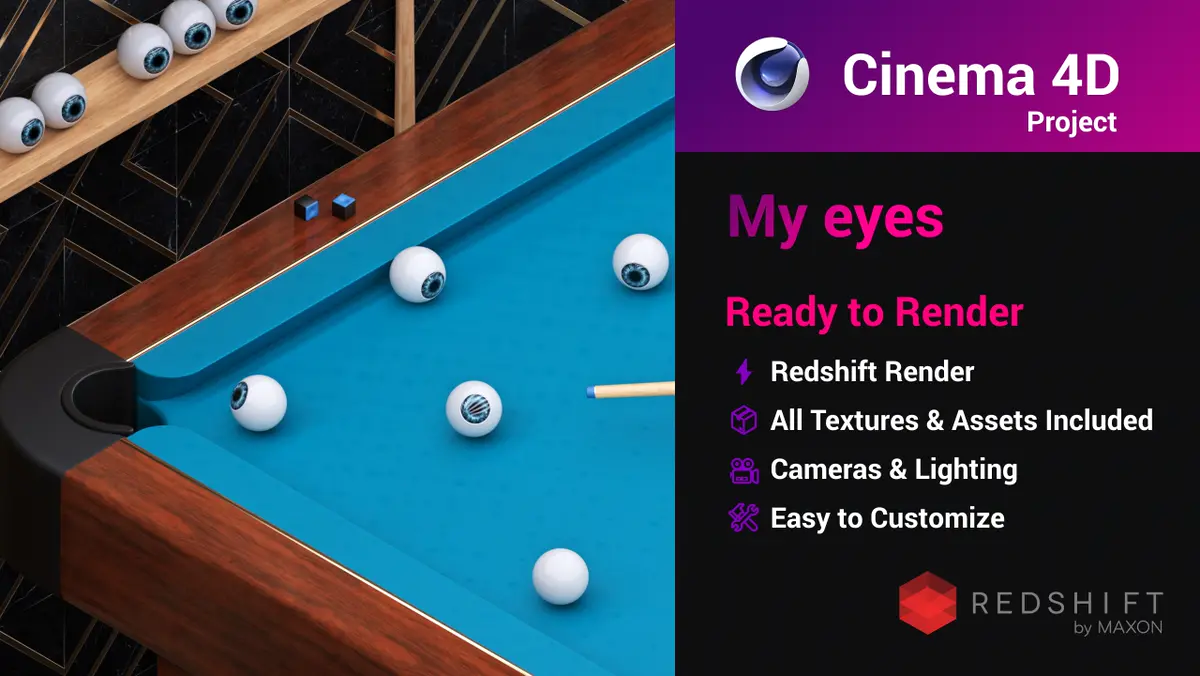
My Eyes
My Eyes is a Cinema 4D project featuring a surreal isometric billiard scene where eyeballs replace traditional pool balls. This seamless loop animation demonstrates complex materials, baked rigid body dynamics for accurate physical impact, and character/object tracking setup.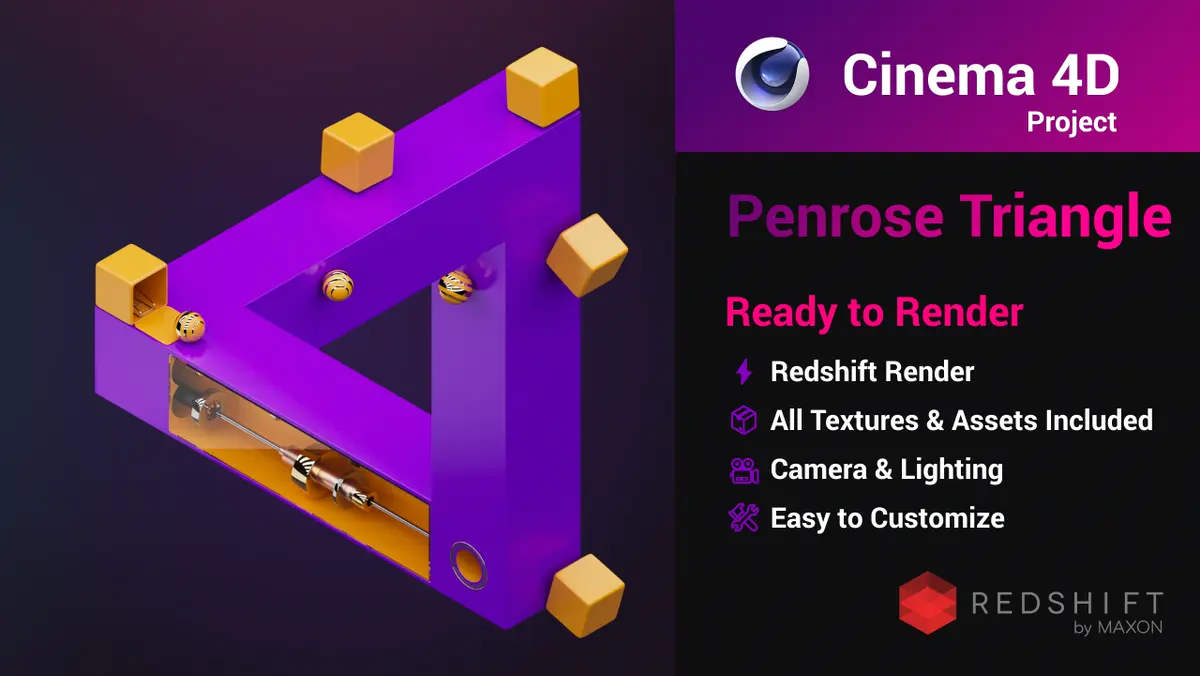
Penrose Triangle
Penrose Triangle is a Cinema 4D project featuring an impossible object optical illusion built in an isometric perspective. This seamless loop animation demonstrates advanced techniques for creating forced perspective geometry, complex MoGraph setups, and precise animation synchronization.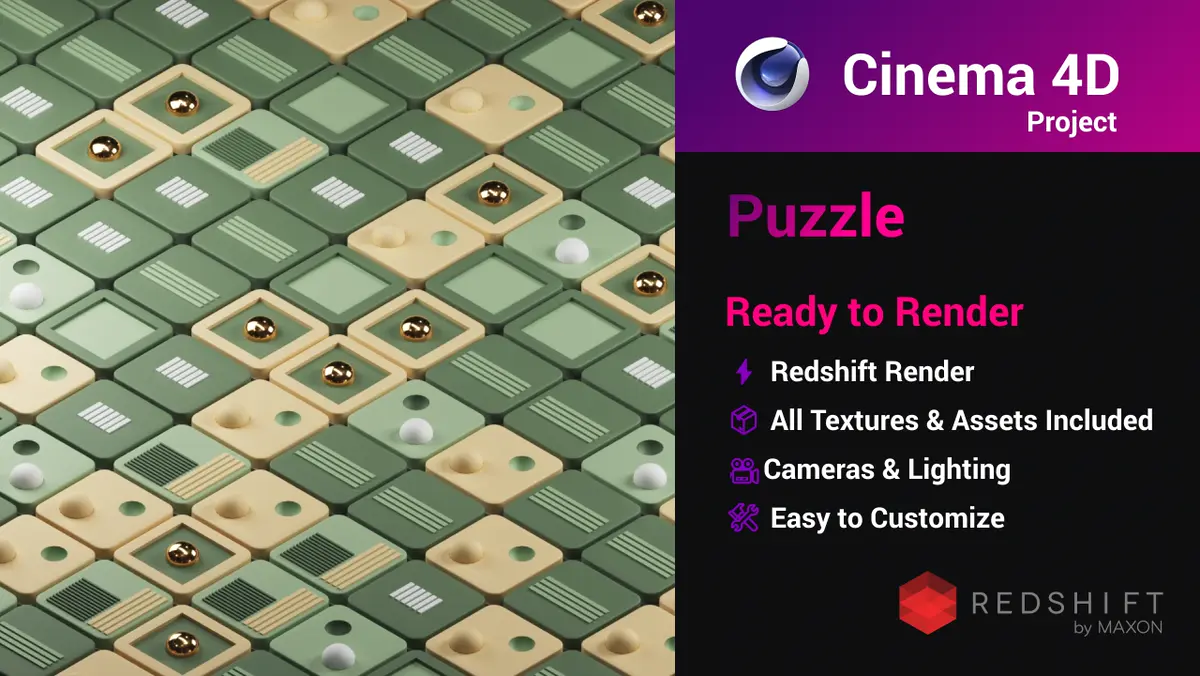
Puzzle
Puzzle is a Cinema 4D project featuring a complex isometric 3D scene driven by MoGraph tools and a smooth seamless loop animation. Built with Redshift, it serves as an excellent reference for mastering procedural animation techniques, fields, and realistic studio rendering.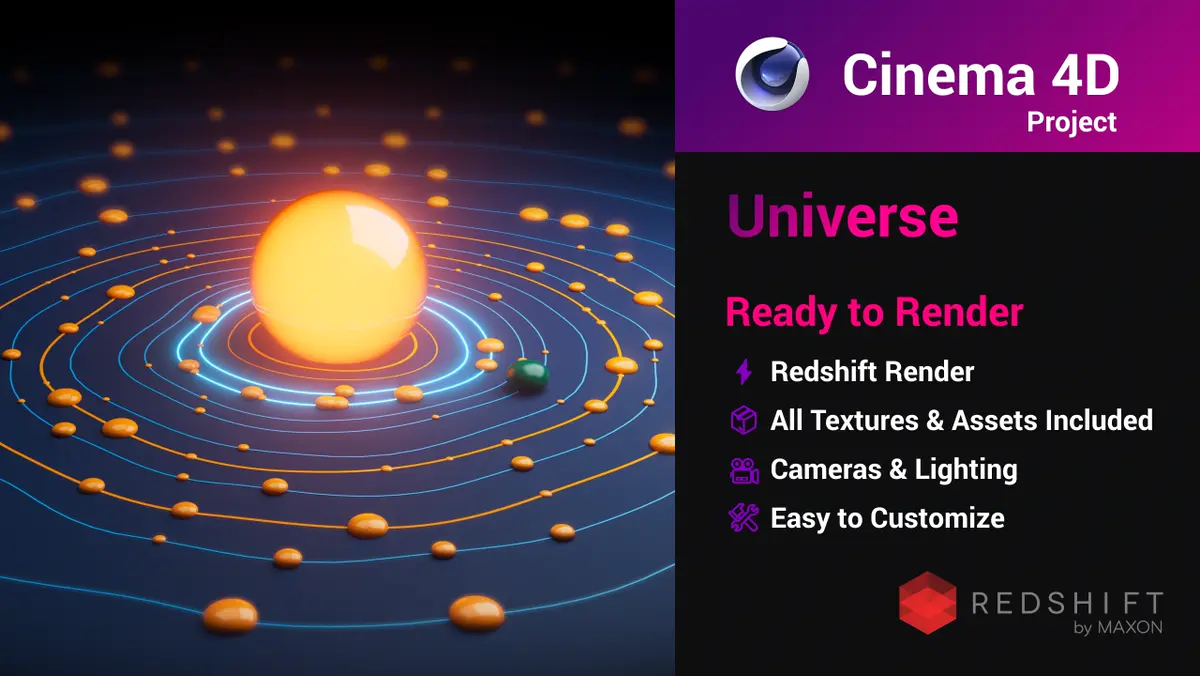
Universe
Universe is a free Cinema 4D project featuring a stylised space-inspired 3D scene built with Redshift. It is designed as a practical learning template to help motion designers understand key Cinema 4D generators, deformers, and shading techniques.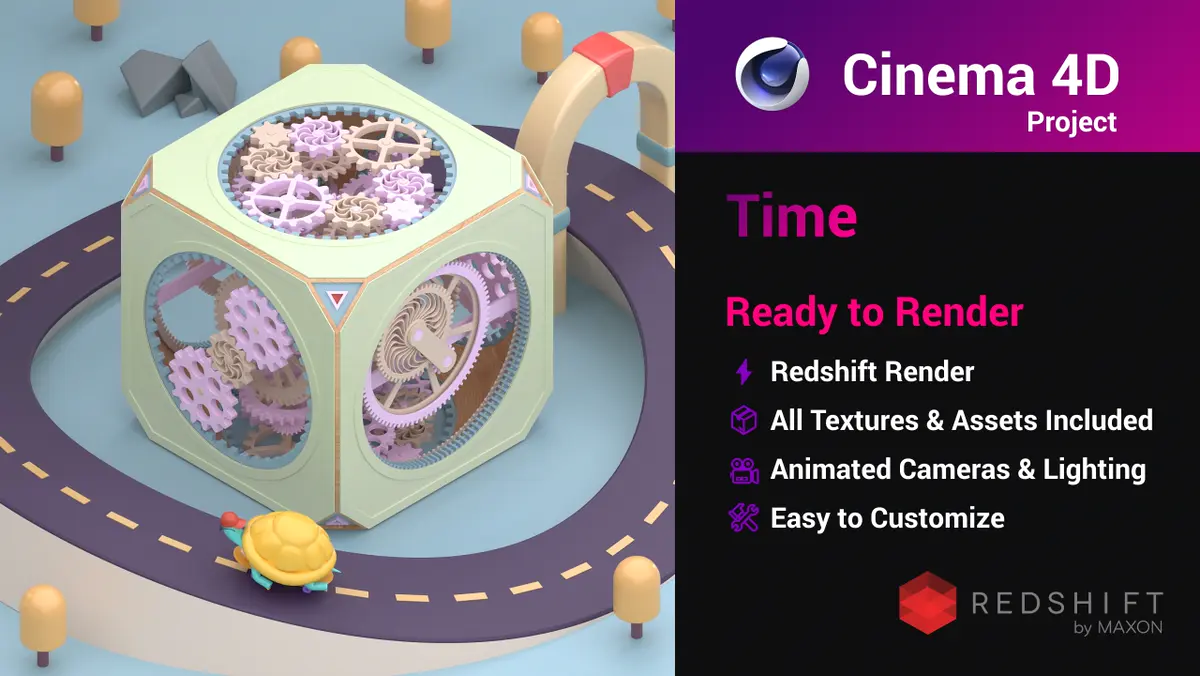
Time
Time is a Cinema 4D project featuring a detailed isometric scene with a gear mechanism cube and a smooth seamless loop animation. Perfect for educational purposes, motion design learning, or extracting high-quality 3D assets for your own projects.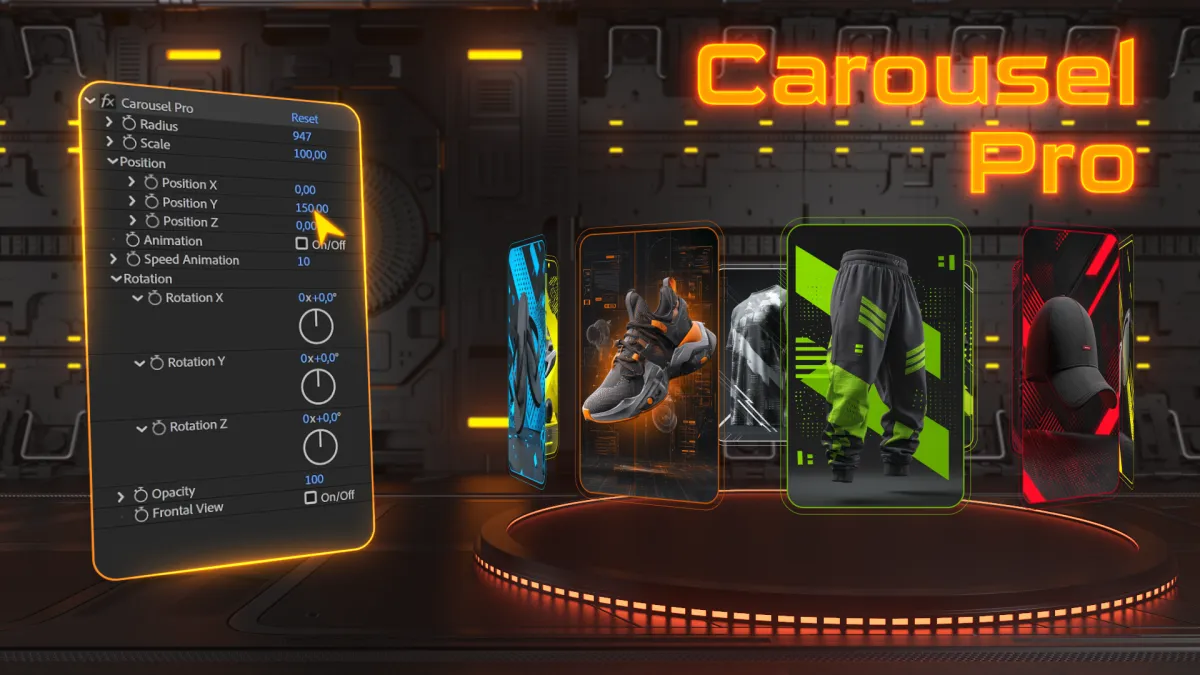
Carousel Pro
Carousel Pro is a powerful premium toolbar (script) for Adobe After Effects that automates the complex process of creating 3D carousels in just two clicks. Designed for motion designers, video editors, and UI/UX specialists, it completely eliminates the need for manual calculations, spatial alignment, and complex camera setups.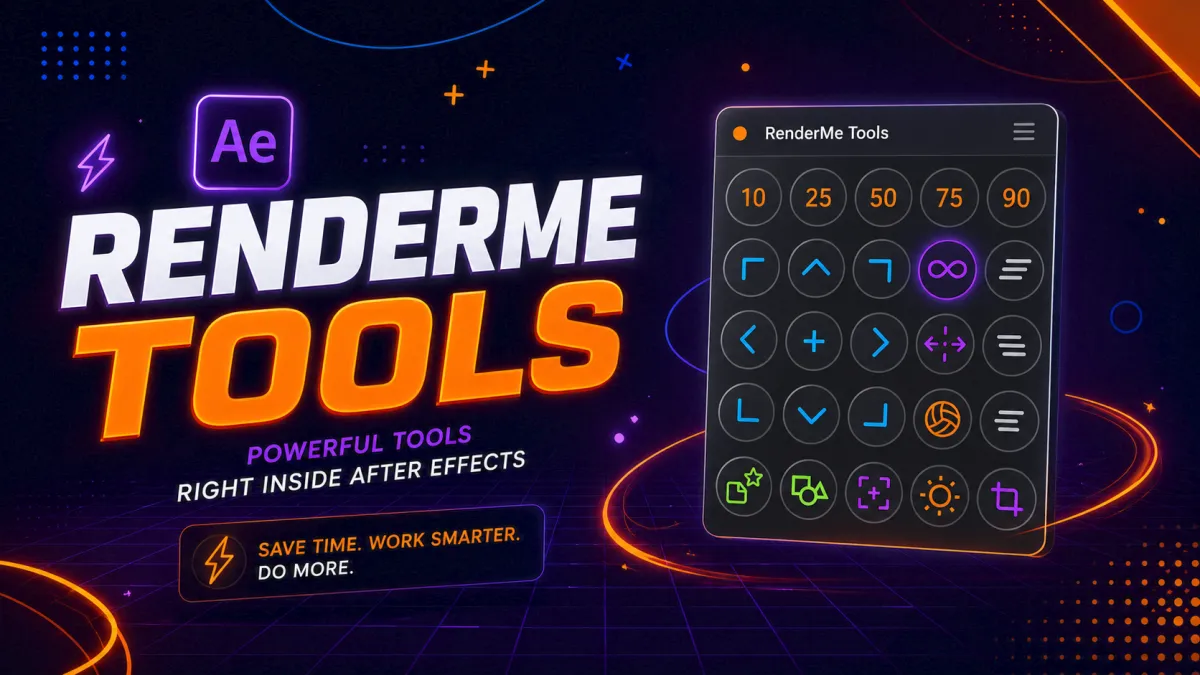
RenderMe Tools
RenderMe Tools is a compact, lightning-fast ScriptUI panel for Adobe After Effects that strips the routine out of everyday motion design. Built for motion designers, MoGraph artists, animators, and studios working at scale, it brings the 25 most-used operations — easing, looping, staggering, anchor positioning, vector conversion, bounce, wiggle, and smart precomposing — into a single dockable panel that’s always at your fingertips.